
During a Tradovate outage, do not assume that an open position has closed. First distinguish a local internet or device failure from a TradingView/webhook failure and from a broker or exchange disruption. Tradovate says orders already held at the exchange or on its servers do not depend on your device. That does not guarantee execution or access during a broker or exchange outage. Check working orders, new signals and actual account exposure separately.
Table of Contents
- Tradovate outage: what happens to open positions and working orders?
- Separate working orders, new signals and real exposure
- What happens when TradingView or the webhook fails?
- What happens when the automation service stops responding?
- An outage checklist for checking your real exposure
- How to pause PickMyTrade without losing track of open positions
- What if you cannot reach your Tradovate account?
- Before you turn automation back on
- Frequently asked questions
- Related guides
Reviewed against current documentation on 26 October 2026.
Tradovate outage: what happens to open positions and working orders?
Tradovate’s Where Do Your Orders Reside? explains that its orders are held at the exchange or server-side rather than on your device. Its assurance that orders continue working concerns an internet outage or device disruption. This source was checked on 26 October 2026.
If your stop and target appear as accepted working orders at Tradovate, losing your local internet connection or closing your laptop does not itself remove them. They remain subject to their normal terms, cancellation, expiration and execution rules. A stop does not guarantee a fill at its trigger price, and a stop-limit order can remain unfilled. An old entry order can also still fill.
The important limit is that this covers orders that exist at the broker. A stop line drawn on a chart, an exit level inside a strategy’s code, or an exit your automation was going to send later is not a working order. When a trader says the stop and target “disappeared” after a disconnect, the first question is whether the broker ever accepted those orders. The order history answers it: accepted, cancelled, rejected or never received.
If Tradovate or an exchange is disrupted, you may be unable to view, change or execute orders normally. The local-internet guidance is not a promise of protection in that situation. Use the provider’s current incident and emergency guidance. For another broker, check that broker’s own order-hosting and emergency procedures.
Separate working orders, new signals and real exposure
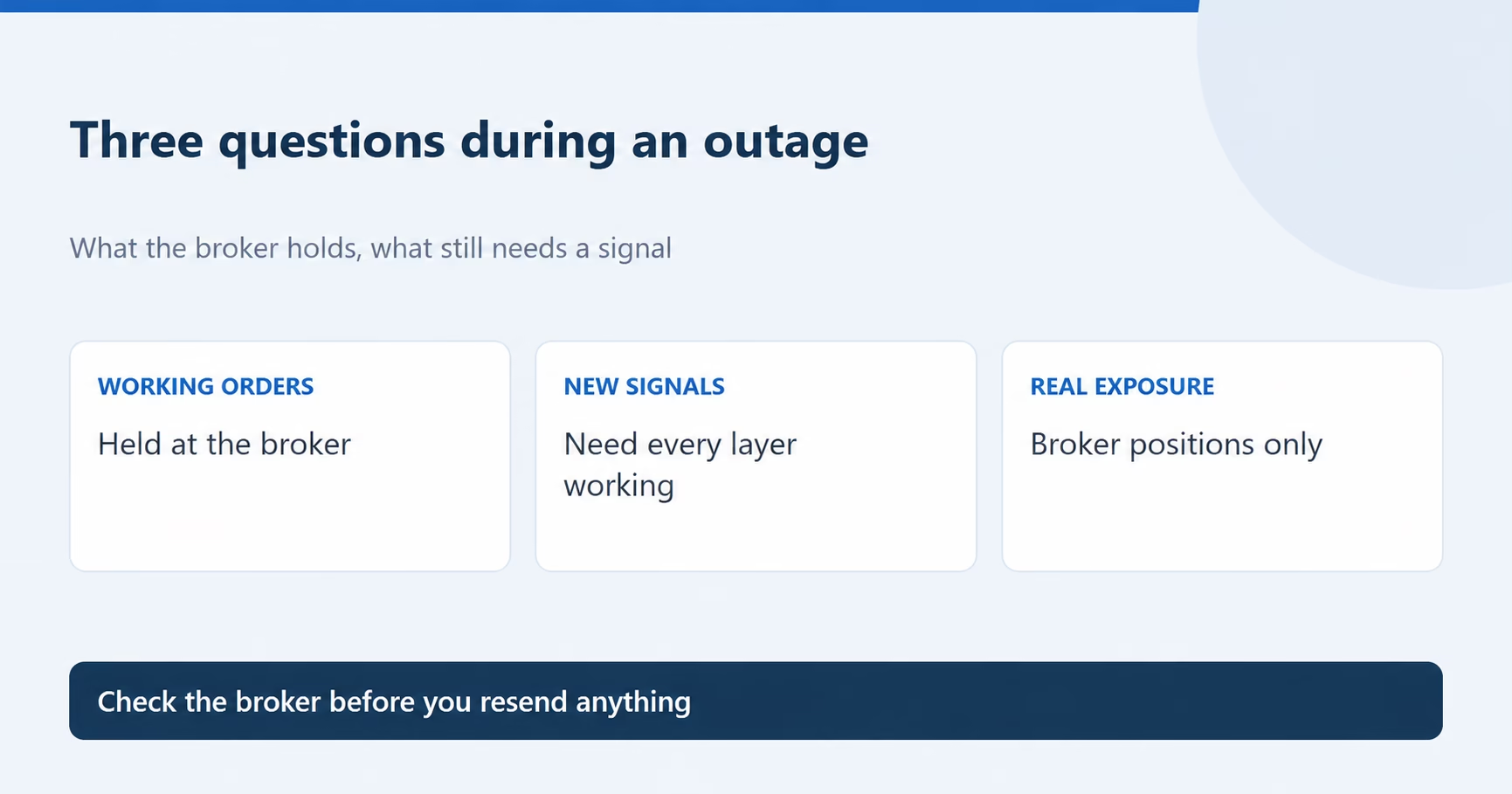
An outage feels like one problem. It is really three questions with three different sources of truth.
| Question | Where the answer lives | Needs TradingView or automation to be working? |
|---|---|---|
| Which orders are working right now? | The broker’s working-orders list for each account | No new TradingView signal is needed for an accepted working order; broker and exchange systems still matter |
| Will my next entry or exit signal arrive? | TradingView’s alert log, its webhook status and the automation service’s log | Yes. Every layer has to work at the moment of the signal |
| What am I actually holding? | The broker’s positions view, by account and contract | No TradingView signal is needed to record exposure; use current broker records, and contact the provider if the display is unavailable or stale |
Mixing these up causes the expensive mistakes: sending an entry again when the first one already filled, or trusting a strategy on the chart that shows flat while the account is still long.
What happens when TradingView or the webhook fails?
TradingView says its alerts are server-side: they are created and triggered on TradingView’s servers, so closing the app or the chart does not stop them. Your own computer is not needed for TradingView to generate the alert. That does not prove that every downstream connection is available. See TradingView’s note on alerts when the app is closed.
Delivery is a separate step. TradingView’s webhook guide warns that webhooks may occasionally fail to reach the URL and points you to the Webhook status column in the alert log. It also says a request is cancelled if the remote server takes longer than three seconds to process it.
TradingView documents one resend case. Its webhook resubmission page says that if the receiving server answers with a status code from 500 to 599, except 504, the notification is sent again after 5 seconds, up to 3 resends. That makes up to four sends for one trigger. The webhook error guide lists the other failure types, such as timeouts, refused connections and invalid URLs.
So a signal sent during a problem may have been delivered once, more than once, or not at all. Whether a repeated delivery becomes a repeated order depends on the receiving service, which is why the broker’s order history is the place to check. The TradingView pages cited here do not describe holding missed alerts and delivering them later, so do not plan around a replay.
The effect on open trades depends on who owns the exit. If your strategy closes positions with a later alert, a failed delivery can leave the position open unless an independent broker order, manual action or risk control closes it. A webhook-only failure does not itself cancel previously accepted broker orders; their normal order terms and execution risks still apply. Our guide to order fills versus alert() calls explains how to decide which part of your setup owns the exit.
What happens when the automation service stops responding?
An automation service sits between TradingView and the broker. It receives the alert, processes it and requests an order. Those are separate events from the broker accepting and filling that order. When the service stops responding, think about it in three parts.
- Orders the broker already accepted are independent of a new alert from the automation service, subject to broker/exchange availability and the orders’ normal terms.
- New signals cannot become orders through that route until it is working again.
- Anything the service was expected to do later, such as sending an exit on the next alert or carrying out a scheduled action, is unconfirmed until the broker’s records show it happened.
Do not treat a green connection light or a “running” status as proof that an order exists. Treat any signal sent during the disruption as unconfirmed until the broker shows the result.
If PickMyTrade is your route, compare three records for the same event: the TradingView alert log, the PickMyTrade alert log and the broker’s order history. PickMyTrade’s Tradovate monitoring guide describes that order of checks. If an alert appears in TradingView’s log but not in PickMyTrade’s, the guide says to export the TradingView log as a CSV file and send it to support with your registered email. The equivalent guide for TradeLocker, Rithmic and IBKR gives the same steps.
Illustrative example: an account is long two micro contracts and shows an accepted stop and target for that quantity. Webhook delivery fails while the broker remains available. That delivery failure does not itself cancel the existing orders, but a moving-average exit that still needs a webhook has not been confirmed at the broker. The chart may show its simulated position as flat while the real account remains open. Check actual order status and fills; none of the exits is guaranteed to execute. This is a constructed example, not a customer incident.
An outage checklist for checking your real exposure
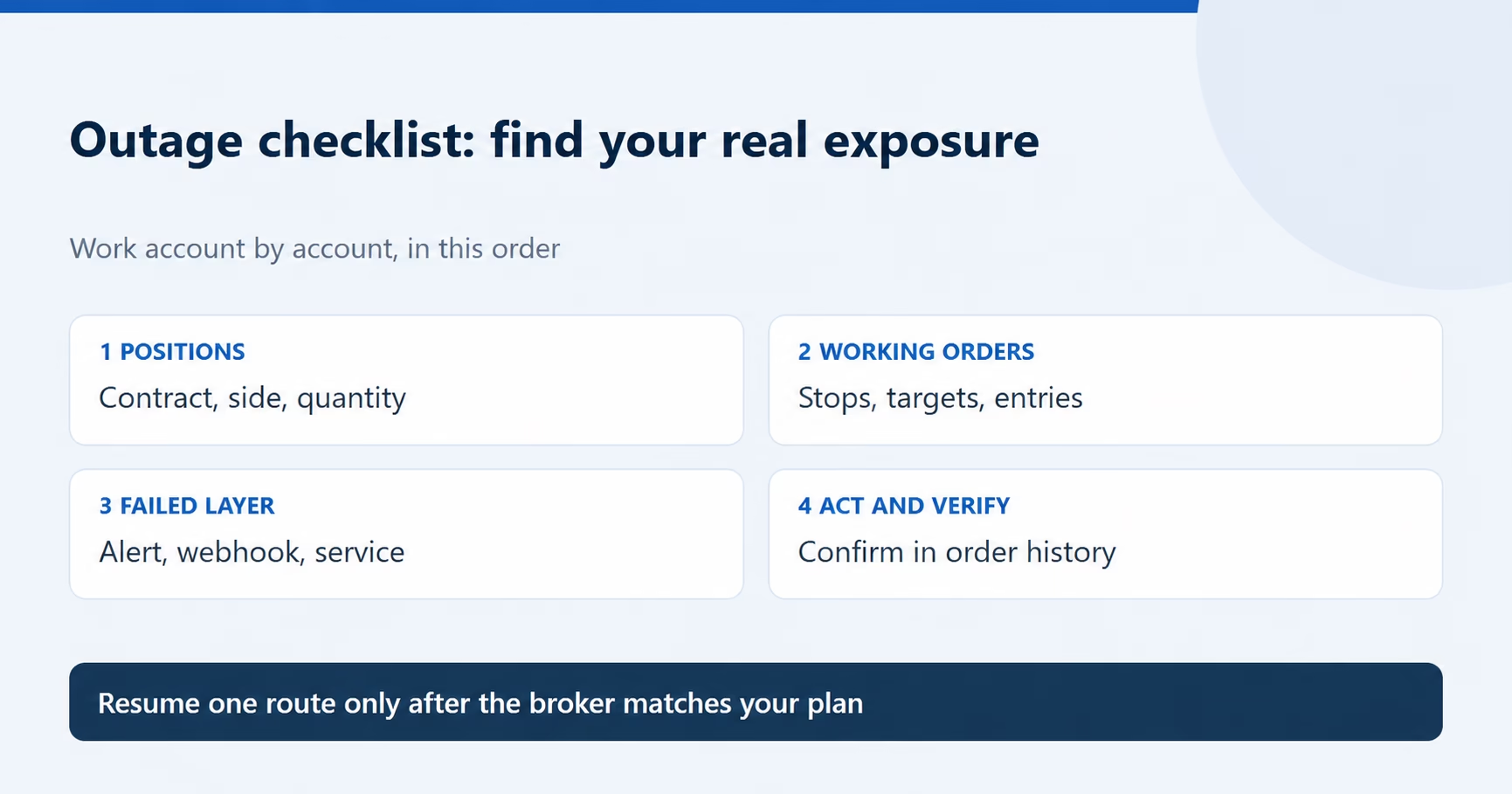
Work through this in order. Use current broker records and confirm each action rather than relying on a possibly stale dashboard.
- Open the broker directly. Use the broker’s web, desktop or mobile platform, not the chart or the automation dashboard. Select each account in turn.
- Write down positions. Contract, direction and quantity for every account that could have traded.
- List working orders. Stops, targets and unfilled entries. Match the stop and target quantity to the position. A stop for two contracts on a three-contract position leaves one contract without that protection.
- Read the order history since the problem began. Look for fills, rejections and cancellations you did not expect.
- Find the layer that failed. Did TradingView create the alert event? What does the Webhook status column say? Did the automation log record it? Did the broker receive an order?
- Decide position by position. Close it deliberately, or keep it with protection you have verified at the broker. Decide separately whether each unfilled entry should still be allowed to fill.
- Confirm every action. A close request can be rejected or only partly filled, and a cancel can fail. Check the broker’s records again after each one.
- Stop new signals from the broken route until you understand what failed, then keep timestamps and screenshots privately for support.
Do not resend an entry just because the dashboard looks quiet. If the first order reached the broker, replaying it can create extra exposure if the repeated order is accepted and filled. Compare one event across the TradingView log, PickMyTrade log and broker history before deciding whether it needs any further action.
How to pause PickMyTrade without losing track of open positions
Pausing automation and closing a position are different actions. Pausing is useful when you want no new automated orders while you sort out what happened.
On pickmytrade.io, the Pausing Automated Trading guide describes a Pause Account button in the Alerts section. While paused, alerts are still received but are not processed or executed. Resume Account returns to normal processing. For Tradovate on pickmytrade.trade, the trading time settings guide describes a Pause Trading control in the Alert Log; clicking Pause Account stops new trades until you resume.
Three points matter during an incident:
- While paused, incoming alerts are not processed or executed. Do not assume suppressed alerts will be replayed on resume; reconcile the logs and account first.
- Do not treat manual Pause Account as a flatten or cancel command. Check existing positions and orders directly. Separate timed or news controls may be configured to request closes or cancellations.
- If your exits come from alerts, pausing also stops those exits. Make sure each open position has another way to close, or close it yourself.
After pausing, open the broker and make a decision for each object:
| What you find at the broker | Decision needed |
|---|---|
| Open position | Close it deliberately, or keep it with protection you have confirmed at the broker. |
| Unfilled entry order | Decide whether it should still be allowed to fill. Cancel it if not, then confirm the cancel. |
| Protective stop or target | Check that the quantity and price still fit the current position. |
| Copier follower accounts | Check each follower on its own. One can be flat while another still holds a position. |
| Exit that depends on an alert | Remember that the pause blocks it. |
You can also stop signals at the source by turning off the TradingView alerts that feed the route. That stops new messages; it does not touch orders or positions at the broker. Do not use a subscription cancellation as an emergency trading control. If several accounts copy one another, identify every route and check each follower account separately.
What if you cannot reach your Tradovate account?
Tradovate’s Trading Emergencies article (checked 26 October 2026) describes two options for a live Tradovate Brokerage account when you lose internet access or power. You can call or email its Emergency Trade Desk, which it says can flatten positions and cancel working orders. If you have cellular data, you can manage positions and orders in the mobile app. The article lists the desk’s phone number and hours.
The scope is narrow. The article says the desk handles live Tradovate Brokerage accounts only. Prop firm and third-party brokerage account holders are told to contact their account provider, and Tradovate says it cannot close or manage positions for non-Tradovate Brokerage accounts. The orders article adds that evaluation accounts should contact the evaluation service directly.
If you trade a prop firm account, look up the firm’s emergency contact and its policy on platform problems before you need them. An open position keeps gaining or losing while you cannot see it, and the firm decides how its account rules treat the result. Do not assume losses during an outage will be reversed. For the firm-rule side of automation, see our guide to prop firm automation rules.
Before you turn automation back on
Resuming too early can repeat the problem. A strategy that missed an exit may still believe it holds a position the account no longer has, or the reverse. Its next signal can then add to a position instead of closing it, or try to close one that is already gone.
- Make the account match your plan: close or keep each position on purpose, and cancel entries you no longer want.
- Compare the strategy’s position on the chart with the broker’s position. If they disagree, resolve that before the next signal.
- Check the current alert message, account, quantity and schedule for the route you are about to resume.
- Resume one route at a time and follow the next event through the alert log, the automation log and the broker.
If the next trade fills at a price you did not expect, the guide to TradingView automation and slippage discusses execution differences and slippage considerations.
Frequently asked questions
Accepted orders at Tradovate do not require a new TradingView signal to remain working. Verify their current status and quantity in the broker’s order list. A broker/exchange disruption, cancellation, expiration or execution conditions can still affect them. An exit that requires a future alert cannot be assumed to occur while that delivery path is failing.
Do not plan around it. TradingView documents a resend only when the receiving server returns a 5xx error other than 504: it tries again after 5 seconds, up to 3 more times. A request that gets no response within 3 seconds is cancelled. Check the Webhook status column in the alert log to see what happened to each event.
Do not use Pause Account as a close or cancel command. The documented manual pause blocks processing of incoming alerts, including exits that depend on them. Check existing positions and working orders at the broker, and distinguish manual pause from separately configured timed or news closing controls. Reconcile the account before resuming.
That depends on your broker and platform, so learn the documented flatten and cancel controls for each account before you need them. Pausing an automation service is not one of them: it stops new instructions but does not close anything. Confirm every close or cancel in the broker’s order history.
Contact the firm that provides the account. Tradovate’s emergency guidance says its Emergency Trade Desk covers live Tradovate Brokerage accounts and that prop firm and third-party brokerage account holders should contact their account provider. Find that contact route before you trade.
Educational information. Check current platform documentation and your account’s rules. Examples are illustrative; execution outcomes are not guaranteed.






