
Save a TradingView layout when you want to preserve a chart workspace. Save an indicator template when you want to reuse a collection of indicators and their settings. Before either action, decide what you are trying to preserve: the workspace, its studies, a drawing, or a record of a particular research configuration.
Table of Contents
- Choose the right object to save
- How to save a TradingView layout
- Check that your saved changes reopen correctly
- How to save and apply an indicator template
- Why does my phone open a different chart?
- Keep a compact workspace inventory
- When saving appears to fail
- Common questions
- Should I use autosave or manual save?
- Can an indicator template restore all my drawings?
- Does copying a layout copy my complete automated workflow?
- What is the quickest useful recovery check?
A reliable recovery check takes only a few deliberate actions. Name the layout, save it, reopen that exact layout, then compare a known indicator input and drawing. Keep an experimental copy for changes you have not yet accepted.
Choose the right object to save
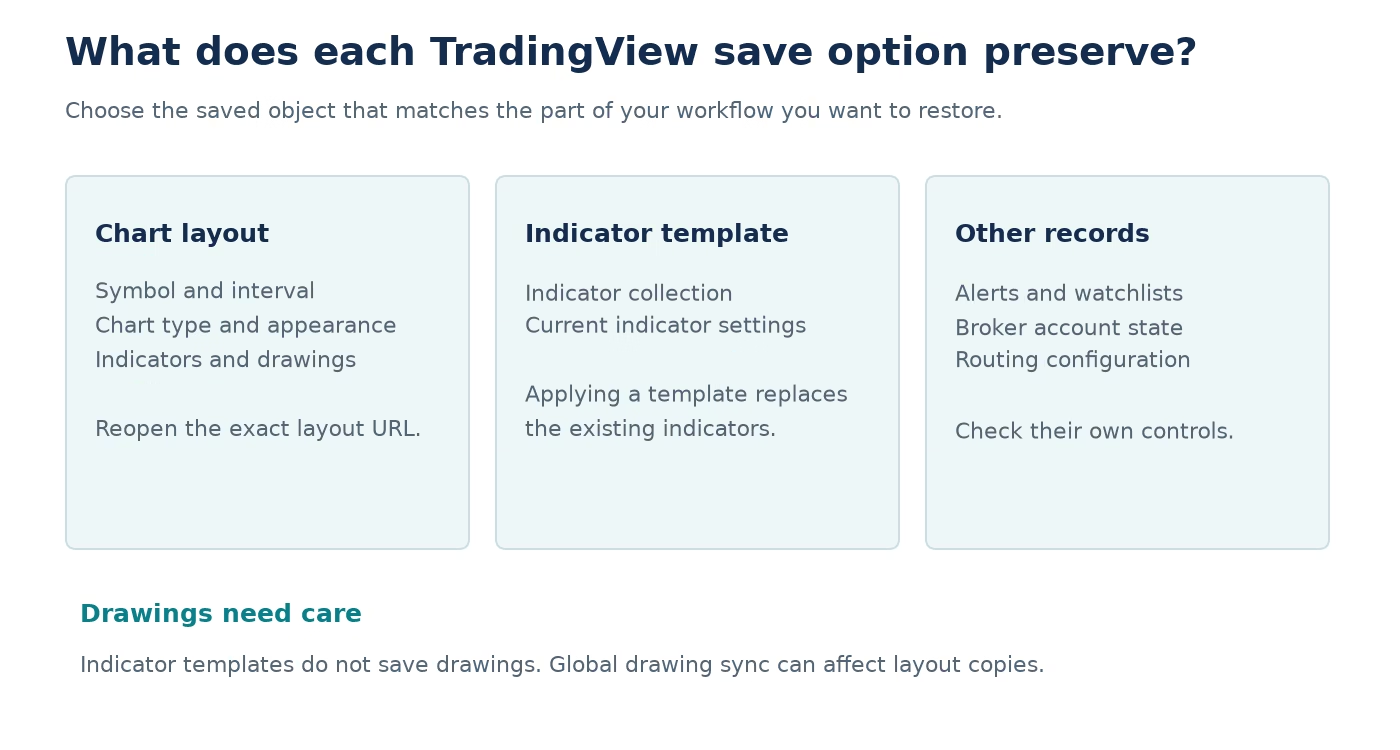
TradingView describes a layout as a saved Supercharts workspace containing the symbol, interval, chart type, indicators, drawings and appearance settings. The layout menu supports saving, autosave and making a copy. Use a meaningful name so you can distinguish a stable workspace from a temporary experiment. TradingView: layouts quick guide
A template serves a narrower purpose. TradingView says it stores a set of indicators with their current settings. Applying one replaces the current indicators. Drawings are not part of the indicator template. Alerts and watchlists are not stored in layouts. These boundaries explain why saving one object should not be treated as a backup of the entire trading workflow. TradingView: layouts and their components
| Your task | Object or record to use | Verification to perform |
|---|---|---|
| Preserve a complete analysis workspace | Named layout | Reopen the exact saved layout |
| Reuse the same indicator collection | Indicator template | Apply to a disposable copy and compare |
| Preserve a dated research configuration | Layout copy plus settings record | Match the version name and inputs |
| Record an alert setup | Separate alert record | Inspect the alert itself |
| Preserve broker execution evidence | Broker order or trade record | Confirm the actual execution details |
Open the alert and broker account records when checking those parts of your setup.
How to save a TradingView layout
- Open Manage layouts in the top toolbar.
- Choose Create new layout and give it a descriptive name, or open the existing layout you want to save.
- Configure the symbol, interval, chart type and studies.
- Save from the layout menu. The documented shortcuts are Ctrl+S on Windows and Cmd+S on macOS.
- Use Open layout to reopen the saved workspace and confirm one recognizable setting.
Begin with the workspace you intend to retain. Give it a name that states its purpose, such as “ES review — standard candles,” and record the layout URL in your own notes. Add a date or version when the layout represents a specific research baseline.
Save it, then make a copy for changes you have not yet accepted. Name the copy clearly enough that it cannot be mistaken for the baseline. “Experiment — session comparison” is more useful than two layouts both called “Main.” This naming convention is a recommended workflow, not a special TradingView feature.
Change one visible item in the experimental copy, save it and reopen the original. Confirm that you can distinguish the two by name and content. This small check establishes your own recovery route before you make extensive changes to indicators or drawings.
Check drawing synchronization before editing annotations in a copy. TradingView supports global drawing synchronization across layouts, so a copied layout is not necessarily an isolated sandbox for those drawings.
Do not delete the original during this process. Reopen the saved version before relying on it for recovery.
Check that your saved changes reopen correctly
Choose a harmless, recognizable change in the working copy: a chart color, a descriptive layout name or a clearly documented indicator input. Save the layout using the available layout control. Then open that exact layout again from the layout list and confirm the change.
Record the result rather than repeating the action several times without checking. “Saved version B, reopened its URL, confirmed the new input” tells you what succeeded. “Clicked save repeatedly” does not identify which layout or version was stored.
If the change is missing, first compare the layout name and URL, active account and device. Close competing editing sessions while reproducing the issue. TradingView warns that when the same layout is edited in several tabs, only the latest changes are saved.
This controlled test is particularly helpful when a user alternates between a browser, desktop app and phone. It distinguishes “the saved object is different” from “this device opened a different object.” Those problems require different fixes.
How to save and apply an indicator template
Display the indicator combination you want to reuse, open the Indicator Template button in the top toolbar, and select Save indicator template. Give the template a descriptive name. To apply it later, open the same toolbar menu and choose the saved template. TradingView indicator template instructions Include a version label in your accompanying notes if the inputs are part of a research experiment. A template called “Momentum” says little about which settings produced yesterday’s comparison.
Apply the template to a disposable copy first. Compare the indicator names, input values and pane arrangement with your reference. Preserve any drawings that matter before this test, because the template does not serve as their backup.
If the applied result is unexpected, stop and inspect it before saving over a trusted workspace. Record which indicator was missing or changed. Do not respond by applying several templates in succession. That makes it difficult to identify which action caused the difference.
Keep the template name and layout name in separate fields in your notes. They may belong to the same workflow, but they are different objects. That distinction saves time when asking another person to reproduce an issue.
Why does my phone open a different chart?
When the phone opens a different chart, inspect the selected layout before rebuilding the workspace. TradingView has a mobile preference for remembering the last chart viewed on that device, as distinct from the last chart viewed across the account. That preference can explain why opening the app does not show the chart you expected. TradingView: remember the last opened mobile chart
For a useful comparison, save the intended layout on the first device, record its name, and deliberately open that named layout on the second device. Compare one known setting. Do not use “whatever chart appeared when I launched the app” as the sole test of whether a specific layout was saved.
If the difference remains, document both app or browser environments and the exact object being compared. That gives support a reproducible issue instead of an ambiguous report that desktop and mobile are different.
Keep a compact workspace inventory
A small inventory is easier to maintain than a folder full of unlabeled screenshots. Use one row per stable workspace and update it when you intentionally replace a baseline.
| Field | Example of what to record |
|---|---|
| Purpose | Morning chart review, not a live execution control |
| Layout name and URL | Exact saved object |
| Last verified reopen | Date and device |
| Indicator template | Name and settings-record version |
| Important drawings | Where they belong and the reference screenshot |
| Separate alert record | Location of your alert checklist |
| Changes since baseline | Specific input or component changed |
The example labels describe a documentation method. They are not claims about a particular trader’s results. The value comes from making the next restoration attempt repeatable.
Review the inventory after a substantial script update or workspace redesign. Retire obsolete copies deliberately, only after confirming which baseline you need to keep. Clear names reduce the chance that a future cleanup removes the wrong layout.
When saving appears to fail
Capture the layout name and URL, account context, time of the save, the exact change and the result after reopening. Note whether another tab or device had the same layout open. Include screenshots before and after with sensitive information removed.
Ask support to investigate that sequence. Avoid adding unrelated execution problems to the same ticket unless you have evidence connecting them. A chart layout question and an order-routing question may share a timestamp without sharing a cause.
If you use PickMyTrade, keep its destination configuration and execution records alongside your workspace notes. Confirm the intended broker account when reviewing a deployed workflow.
When your intentional workspace change also changes a deployed strategy, follow the separate running strategy alert update checklist. Reopening the right chart verifies the workspace. The alert needs its own check.
If saved layouts still show different futures prices, compare the contract and chart settings using the futures chart comparison guide.
Common questions
Should I use autosave or manual save?
Use the behavior you can verify consistently. For a research baseline, a deliberate save and successful reopen provide a clear checkpoint. Autosave can support everyday editing, but it does not remove the need to know which layout you are editing.
Can an indicator template restore all my drawings?
No. TradingView documents indicator templates as a separate object from drawings. Preserve the layout and any necessary reference record before replacing an indicator collection, especially when annotations sit in indicator panes.
Does copying a layout copy my complete automated workflow?
No. Treat alerts, destination configuration and broker state as separate records. Verify each through its own controls rather than inferring its state from a copied chart.
What is the quickest useful recovery check?
Open the exact named layout, confirm its URL, inspect one known input and compare one important drawing or pane. If those match your baseline record, you have a concrete starting point for checking the rest of the workspace.