
Copying trades across multiple Tradovate accounts can significantly streamline your trading process. In this guide, we walk you through the steps to set up and execute trade copying efficiently, ensuring you maximize your trading strategy’s potential.
Table of Contents
- Setting Up Your Master and Sub Accounts
- Executing Market Orders
- Utilizing Limit Orders
- Handling OCO Orders
- Conclusion
Setting Up Your Master and Sub Accounts
To begin, it’s essential to establish a master account and one or more sub accounts. The master account is where you’ll place your trades, and these trades will be copied to the sub accounts.
First, log into your PickMyTrade account. Once logged in, you can add your master and sub accounts. For example, if your admin account is demo 34914 58, and you want to copy trades to demo 291 396, ensure these accounts are correctly linked and sharing the PickMyTrade token.
When setting up, you can use the quantity multiplier to adjust the trade amount for each account. A multiplier of two doubles the trade amount, while one keeps it the same. After adding your accounts, click ‘Start’ to initiate monitoring.
Executing Market Orders
Once your accounts are set up, you can start placing trades. Begin with a market order by selecting ‘Buy Market Order.’ This action will place the order across all linked accounts. Similarly, for selling, a ‘Sell Market Order’ ensures the trade is executed on each account.
Place a market order with the copier
The flexibility of this setup allows for different quantity multipliers per account, offering tailored control over your trades.
Utilizing Limit Orders
Limit orders provide precision in executing trades at specified prices. When you place a limit order, such as at 67,800, it appears across all accounts. You can modify or cancel these orders, and changes will reflect universally.
Place a limit order with the copier
This synchronization ensures that all actions taken on the master account are mirrored, maintaining consistency in your trading strategy.
Handling OCO Orders
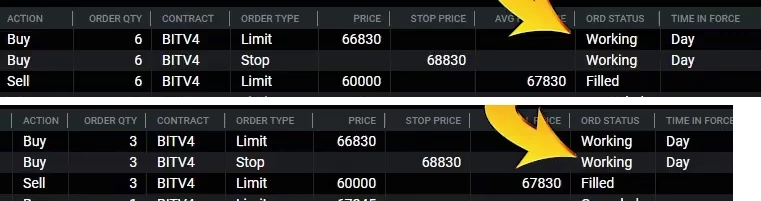
An OCO pair links the profit target and protective stop so a fill in one cancels the other. The older tutorial shows the native Tradovate ticket. For today’s PickMyTrade manual copier, attach a bracket to a market entry.
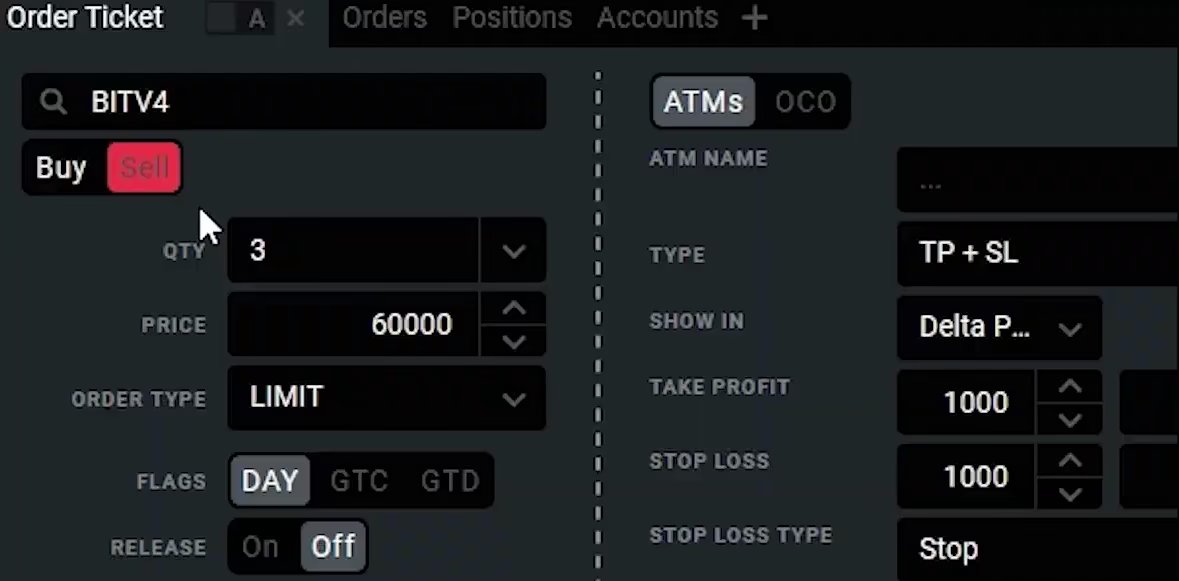
Confirm the entry and both exit orders in each follower account. Consult the current manual copier order types before placing an order.
Conclusion
Copying trades across multiple accounts using PickMyTrade and Tradovate simplifies and enhances your trading operations. By following these steps, you can ensure that your trades are executed consistently and effectively, maximizing your strategy’s reach and impact.
For more detailed insights and tutorials on automating your trading with Tradovate, check out our comprehensive video guide.
Embrace the future of trading with automated solutions and take control of your financial journey.
PickMyTrade specializes in automating trading bots, enabling seamless strategy execution for futures from platforms like TradingView, across well-known brokers such as Tradovate.
PickMyTrade
PickMyTrade specializes in automating trading bots, enabling seamless strategy execution for futures from platforms like TradingView, across well-known brokers such as Tradovate.







I am really inspired together with your writing abilities as smartly as with the layout for your weblog. Is that this a paid subject matter or did you modify it yourself? Anyway stay up the nice high quality writing, it is rare to peer a great weblog like this one these days!
We are a group of volunteers and opening a new scheme in our community.
Your website offered us with valuable info to work on. You have done a formidable job and
our whole community will be thankful to you. http://boyarka-inform.com/